Technology
Step-by-Step Guide to Recover SQL Server Database from Suspect Mode


As an SQL database admin, you are likely to encounter several small and big issues that halt the functioning of your organization. One of these errors happens when you find your database marked in Suspect mode. What is this mode? How does it make your data inaccessible? Why does it bring your business operations to a standstill in a fraction of a second? In this step-by-step guide, let’s discuss this error in detail and find out satisfying methods to recover SQL Server database from Suspect mode.
What is a Suspect mode in SQL Server database?
The database enters Suspect mode when SQL Server initiates a recovery process during startup but fails to complete it. This mode turns the database unreachable, making it unavailable for read or write operations. It prevents you from connecting back to the database or performing startup recovery unless you resolve the issue and restore it to the normal state. The SQL database acquires this safety lock to protect it from any further data loss, inconsistencies, corruption, or damage.
What are the reasons behind the database acquiring the suspect mode?
Several reasons may compel the SQL Server database to adopt the suspect mode, necessitating the recovery.
- The hard disk of the system runs short of space to accommodate new data
- Hardware failures, like bad sectors occupying the disks
- The server encounters corrupt or damaged MDF or LDF database files
- The transaction log file has become corrupt or unreachable
- A sudden system shutdown in the middle of a transaction
- Unexpected termination of the database due to a power outage, etc.
- Inability of the SQL Server to finish a rollback or roll-forward transaction in the database
- Database corruption due to a ransomware or malware attack
- Incorrect server configurations or a failed database restore operation
- Logical consistency I/O error, such as Error 824, caused by the underlying hardware issues
Before proceeding to resolve the issue caused by any of these errors, you should confirm the state of the database.
How to know if the database is in the Suspect mode?
You can determine the state of the database by using the SSMS GUI by following these easy steps.
- Open the SQL Server Management Studio (SSMS)
- Connect to an instance with your login credentials
- Look for Object Explorer in the left pane
- Click Databases to find out the state of your database
- If you find it in Suspect mode, check the SQL Server error log
- If the log displays corruption as the reason behind the Suspect mode, proceed to resolve it.
Alternatively, you may also find the state of the database by using the following T-SQL query in the SSMS Query Builder window:
SELECT name, state_desc
FROM sys.databases
How to recover SQL Server Database from Suspect mode
Once you are sure about the Suspect mode, proceed to resolve this issue and make the database operational. Here are the various methods you can try out.
1. Restore Database from a Healthy and Recent Backup file
In case of a corrupt or damaged database, you can opt for a SQL database suspect mode recovery by using a healthy backup taken recently. Here are the steps to follow:
- Let’s consider our database name as ‘SQLTestDB’. You may change its name to your database.
- Next, verify the backup integrity of the database by using the following query.
RESTORE VERIFYONLY FROM DISK = N’C:\Program Files\Microsoft SQL Server\MSSQL16.SQLEXPRESS\MSSQL\Backup\SQLTestDB.bak’
As a confirmation of the verification, you will get the following message: The backup set on file 1 is valid. It states that the backup file (.bak) is readable, complete, and properly structured.
- Set the database to single-user mode, to avoid any other database connecting to it in the mid of the transaction: ALTER DATABASE SQLTestDB SET SINGLE_USER WITH ROLLBACK IMMEDIATE;
You will see the following confirmation message: Nonqualified transactions are being rolled back. Estimated rollback completion: 100%.
- Next, proceed to restore your database from the backup file by using the T-SQL query as shown below:
RESTORE DATABASE SQLTestDB FROM DISK = ‘C:\Program Files\Microsoft SQL Server\MSSQL16.SQLEXPRESS\MSSQL\Backup\SQLTestDB.bak’ WITH REPLACE;
Here is the confirmation message you will see after successful restoration.
Processed 2 pages for database ‘SQLTestDB’, file ‘SQLTestDB_log’ on file 1.
RESTORE DATABASE successfully processed 530 pages in 0.427 seconds (9.687 MB/sec).
- After completing the database restore, change its state back to Multi-user mode.
ALTER DATABASE SQLTestDB SET MULTI_USER
Alternatively, you can also change the database restriction access through the GUI of SSMS. Here are the steps:
- Under Object Explorer, right-click the chosen database and then click Properties
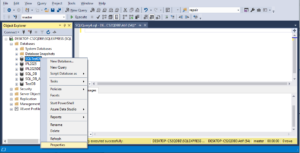
- In the resulting Database Properties window, click Options in the left panel
- In the right panel, scroll down to the State option
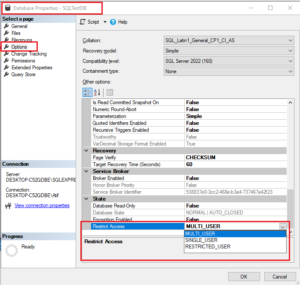
- Look for Restrict Access, click the Arrow drop-down to select SINGLE_USER, MULTI_USER, or RESTRICTED_USER.
- Click OK to confirm the change.
2. Use T-SQL commands to recover the SQL Server Database from Suspect mode
The following steps will help you to remove the Suspect mode from your database and bring it back to its working state.
- Launch SSMS and connect to your instance
- Click New Query to open the query window
- Run the following commands one after another. Replace the database ‘SQLTestDB’ with your database:
ALTER DATABASE SQLTestDB SET EMERGENCY; // Set the database to Emergency mode
DBCC CHECKDB(‘SQLTestDB’); // Check the database for error
ALTER DATABASE SQLTestDB SET SINGLE_USER WITH ROLLBACK IMMEDIATE; // Set the database to SINGLE_USER mode
DBCC CHECKDB(‘SQLTestDB’, REPAIR_ALLOW_DATA_LOSS); // Repair the database using the REPAIR_ALLOW_DATA_LOSS option.
ALTER DATABASE SQLTestDB SET MULTI_USER;The DBC CHECKDB command checks the database integrity and recommends a suitable option, like REPAIR_REBUILD or REPAIR_FAST. If the error persists, it will recommend REPAIR_ALLOW_DATA_LOSS, which will lead to significant data loss in order to remove the damaged rows as part of its repair process. Therefore, act wisely.
3. Turn the Suspect Tag OFF
As an alternative method, you may use the EXEC sp_resetstatus ‘dbNSFP’ stored procedure to turn off the suspect tag. Here are some limitations for using this method:
- In modern versions of SQL Server, sp_resetstatus is an undocumented command
- It resets the database status from suspect to online, but does not settle corruption
- It clears the suspect flag only from system tables, not from the entire database
If possible, it is better to set your database to Emergency mode as a safer of and Microsoft supported method instead of using it.
Limitations of the manual method and resolution
As you can see, the manual methods for SQL database suspect mode recovery have several limitations, such as:
- Possibility of data loss due to deletion of corrupted pages from the database (In case of REPAIR_ALLOW_DATA_LOSS)
- Inability to deal with corrupted database (sp_resetstatus)
- Requirement for deep technical knowledge to understand the involved jargon
- SSMS reduces the complications, but it needs careful attention when selecting options.
- If database restoration fails through SSMS, and there is no database backup, you have to resort to T-SQL commands and face the complexities
- The T-SQL commands may also take considerable execution time, and the result could be unexpected at times.
To avoid the possibility of such errors, you can try third-party SQL recovery software.
Advantages of using SQL recovery software
These advanced tools provide various essential features:
- Recover damaged and corrupt SQL databases
- Recovery deleted records from SQL databases
- Restore the database from Errors, like can’t reach the database, suspect mode, recovery pending mode, etc.
- Allow saving the restored database to a new database file
- Enables the selective recovery of SQL objects, saving your time
When searching the market, you will find Stellar Repair for MS SQL as a viable option that fulfills these benefits.
Conclusion
Are you unable to access your SQL Server database due to a Suspect mode error? If so, prompt resolution is crucial to resume your work and avoid business losses. Admins use several methods to deal with the SQL database suspect mode recovery issue. These include restoring the database from a recent backup file, using T-SQL queries to restore the database, the use of an online SQL Database Repair service, or the not-so-recommended use of the sp_resetstatus stored procedure.
These methods can fix the issue but come with several limitations. They may cause data loss, fail to eliminate corruption, and take much time without delivering expected results. Above all, you need to possess in-depth technical knowledge to adopt these manual methods. To remedy this situation, confiding in advanced and upscale SQL recovery software, such as Stellar Repair for MS SQL, would be a feasible move.
You May Also Read : Trucofax Explained: What It Is, How It Works, and Why It Matters in 2026

The digital storytelling landscape is undergoing a massive technical shift as native artificial intelligence moves from backend optimization directly into the user interface. In mid-2026, Meta rolled out its highly anticipated suite of generative creative features for Instagram Stories, anchored by its new proprietary engine, Muse Image.
Developed by Meta Superintelligence Labs, these updates move past standard visual filters to give creators real-time, text-to-graphic manipulation tools right inside the app. As competition for organic reach intensifies, leveraging these native features has become essential for rapid scaling.
For brands looking to instantly amplify their visual footprint alongside these tools, strategic growth shortcuts can help build a foundation; creators often choose to buy instagram followers from https://blastup.com/buy-instagram-followers to boost their initial social proof, allowing their newly optimized AI content to reach much larger audiences faster.
The Dawn of Muse Image: Unpacking Instagram’s 2026 Story Upgrades
The centerpiece of this update is the Muse Image engine, a generative AI model built natively into the Instagram Stories camera interface. Previously, creators had to rely on third-party design applications or external AI software to generate high-fidelity contents. Now, the internal camera allows for immediate, on-the-fly prompt execution.
Users can tap a dedicated AI effects icon to execute full image transformations, background replacements, and contextual object drops using descriptive language. The model introduces over 30 distinct native AI effects. These range from dynamic lightning shifts that alter the time of day in a photo to complex stylistic modifications that completely restyle a standard smartphone image into specialized art formats—such as hyper-realistic cinematic renders, oil paintings, or vector illustrations.
| Feature Metric | Standard Native Effects (Pre-2026) | Muse Generative AI Engine (2026) |
| Asset Origin | Pre-designed static overlays and asset filters | Real-time generative asset creation via text prompt |
| Environmental Control | Fixed color grading and basic spatial masks | Full lighting, object insertion, and style remapping |
| Processing Location | Local device graphic rendering | Cloud-assisted cloud rendering via Meta Labs |
| Customization Depth | Limited to slider opacity and asset position | Unlimited variations based on text prompt inputs |
How Creators are Using AI Tools to Drive Real-Time Engagement
The rollouts go far beyond just fun visuals; they fundamentally rewrite content workflows for digital media managers and standalone influencers. By eliminating the time-consuming step of asset production, the time from conceptualizing a brand story to hitting publish has dropped significantly.
Data from early adoption cycles indicates that accounts utilizing multi-layered AI effects experience higher viewer retention rates on sequential story frames. To maximize these engagement metrics, forward-thinking social media teams are adopting specific content strategies:
- Contextual Visual Continuity: Creators use text-based prompts to maintain an identical aesthetic across multiple, physically distinct environments. By prompting consistent style layers, a series of stories shot across different days can instantly look unified.
- Interactive Prompt-Driven Stickers: By embedding generative prompt results directly into engagement widgets, brands allow audiences to vote on or suggest changes to subsequent story designs, creating a dynamic, real-time feedback loop.
- Rapid Asset Prototyping: Small business owners can take basic, unedited product photos on a smartphone and instantly generate professional, clean lifestyle backgrounds right inside the story editor, cutting out the need for complex studio lighting setups.
Navigating the Privacy Shift: The Mechanics of “Sharing and Reuse”
While the creative tools offer incredible flexibility, the deployment of the Muse model has sparked a massive conversation regarding user data permissions and digital privacy rights. In its initial rollout, Meta designed the system around an automated opt-in architecture. This means public account photos and reels are automatically indexed by the system to assist other users with inspiration and style references unless the account owner manually turns it off.
For professional creators, managing these parameters is critical to protecting their original intellectual property and personal likeness. Taking control of your data privacy requires adjusting specific backend settings within the native application layout.
Settings and Activity → Sharing and Reuse → Meta AI Permissions
Once inside this specific directory, users will find explicit options labeled “Allow people to reuse your content on Instagram and with AI features at Meta”. Toggling these controls off for both individual posts and video reels removes those specific creative assets from the shared public training pool. Teen accounts feature stricter privacy protections by default, but verifying these configurations remains a crucial best practice for brand managers overseeing corporate assets.
The Future of Short-Form Storytelling: What’s Next?
Instagram’s quick shift toward deeper AI integration points to a future where creators move completely away from static templates. The platform is already working on native AI video generation features, showing that short-form storytelling will soon be completely customizable, interactive, and built on real-time prompts.
View more Instagram growth resources to explore additional strategies that complement these emerging trends. As these tools advance, the top accounts on the platform won’t just be the ones with the largest production budgets. Instead, success will belong to creators who blend smart prompt engineering with authentic storytelling, all while keeping a close eye on their brand privacy settings.
You May Also Read : Understanding Waveform Analysis in Electronic Testing

The TikTok world has now changed. The time of very polished videos and perfect lifestyle content is almost gone. Quick lip-syncing trends that feel empty are also not as popular now. People feel tired of seeing perfect lives and perfect posts. They do not use the app to see people who look perfect all the time. A new way of using the app is here. The TikTok algorithm now rewards videos where you feel a real, raw, and honest human connection with others the most.
If you want your content to get noticed this year, you need to drop the big company scripts and start sharing more real stories. But even if you get good at telling your story, creators and brands still have to keep steady, everyday engagement. This tells the platform’s system that people care about the posts. Using something like auto likes that activate on every upload can help your page get moving fast as soon as you post. This gives your very real and easy-to-connect videos the best chance to go right on the For You Page (FYP).
The Death of the “Aesthetic” and the Rise of “Reali-TEA”
TikTok’s official trend forecasts now use the term “Reali-TEA” to talk about the main change in what people do on the app. People are not looking to run away into some dream world. Instead, they want things that feel real, honest, and let them feel like they are part of people’s lives.
- The Imperfection Premium: Videos with small mistakes, untidy spaces, or honest “get set with me” confession talks do much better than big-budget studio videos.
- The “Evidence Economy”: People are very doubtful. They ask to see “proof of process.” When you show the messy real-life side of things, like starting a business, learning something, or not getting a recipe right, it builds a deep trust that polished ads just can’t give.
Data Info: A look at e-commerce in 2026 showed this. User-Generated Content (UGC)-style videos, which are lo-fi and feel like a friend made them, had a much better return. They got an average of 55% higher ROI than the usual fancy brand ads.
How the 2026 Algorithm Rewards Relatability
The system behind TikTok has changed a lot over time. It used to be a simple interest system. Now, it is much smarter. The algorithm does not focus on surface-level numbers. Instead, it pays more attention to strong signs of how people really feel and act.
[Algorithmic Weight Hierarchy in 2026]
- Watch Time & Completion Rate (Highest)
- Video Saves & Shares
- Replays & Long-form Comments
- Superficial Likes (Lowest)
Now, the platform tracks how long people watch very closely, down to every small moment. People will watch a video all the way to the end if the video has a strong story, one that sets up the scene, introduces a problem, and provides a resolution. This can assist in spreading the video a great deal more throughout TikTok. TikTok is now favoring longer videos, as long as 60 to 180 seconds, allowing creators the time to tell full stories.
Learn how to create your story with the authentic 3-step framework.
As there’s a new wave of business and storytelling, the old methods of video production need to be replaced. Bring your content to life and go through these steps that prioritize people:
-
Unfiltered Hook: First 3 Seconds
Begin with a statement that is very open and raw, or start by getting into what happened. Do not start slow. For instance, you can say: “I got wrapped up in my business and nearly ruined this morning, and here is how it happened.
-
Visual Pattern Interrupts: The Messy Middle
Share the struggle. Make your editing as simple as possible. Make easy jump cuts or raw voiceovers. Update camera angle or introduce new background text every 10-15 seconds. This helps to lock the viewer’s attention on your video.
-
The Talkative Payoff: Call to Conversation
It isn’t advisable to use a regular or strong call to action such as “follow for more”. Rather, pose a question that begins with “Why,” “How,” or “What. You can also pose a question that is near someone. This makes the viewer think that they want to come to the comments section and post their opinions.
Blending Narrative Power with Algorithmic Strategy
In the end, the people who win with views are the ones who care about both feelings and good planning. A good script keeps the viewer watching. Using helpful tools like auto likes that activate on every upload helps you build a strong base of steady activity. When the platform sees quick likes and comments in the first hour, it starts to share your real, long videos with many more people who are likely to care. When you mix real human stories with smart growth plans, your content can do well on today’s social media.
You May Also Read : What Is Incestflox? Understanding the Online Search Term and Internet Safety
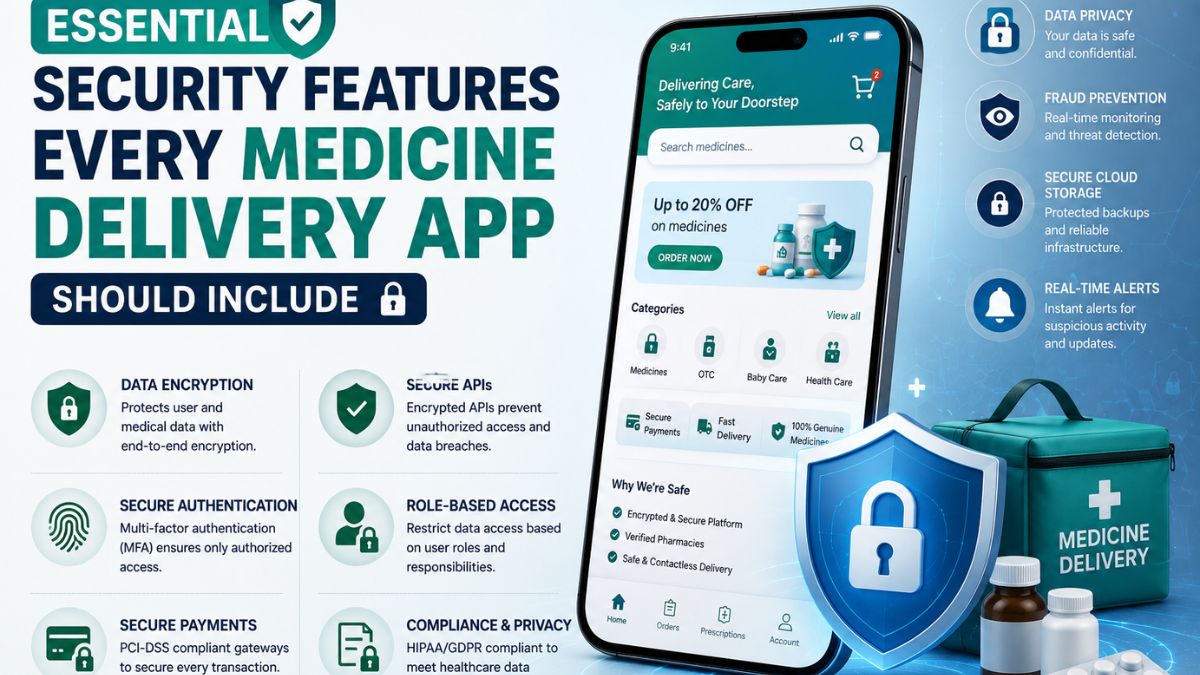
Medicine delivery applications have transformed the way patients access healthcare by making prescriptions and over-the-counter medications available with just a few taps. From uploading prescriptions to tracking deliveries in real time, these apps simplify the purchasing process.
Their main goal is to improve convenience for users with busy schedules, chronic illnesses, or limited mobility. However, the convenience of digital healthcare comes with significant security responsibilities.
Medicine delivery apps manage highly sensitive information, including patient records, prescriptions, payment details, addresses, and personal identification. A single security vulnerability can expose confidential data, interrupt pharmacy operations, and undermine customer trust.
As cyber threats continue to evolve, developers must prioritize security throughout the application’s lifecycle. Integrating advanced protection mechanisms not only safeguards user information but also ensures regulatory compliance and strengthens the platform’s reliability.
Build Security into the Development Process
Security should never be considered a feature that is added after an application is completed. Instead, it must be integrated into every stage of planning, development, testing, and deployment.
Professional medicine delivery app development services focus on secure architecture, encrypted communications, protected databases, and continuous vulnerability assessments from the beginning of the project. This proactive approach reduces the likelihood of security flaws while creating a strong technical foundation that can support future growth.
Embedding security early also lowers maintenance costs by preventing expensive fixes after deployment. Building a secure medicine delivery application requires a comprehensive strategy that protects every interaction, from user authentication to order fulfillment.
Secure Features Begin with Smart Planning
Modern medicine delivery app features should be designed with user protection in mind rather than convenience alone. Every new capability, whether prescription uploads, payment processing, or delivery tracking, should undergo a security evaluation before implementation.
Security-focused planning helps developers identify potential attack vectors, apply appropriate access controls, and establish safe data handling practices without affecting the user experience. As a result, businesses can introduce innovative features while maintaining high standards of privacy and reliability.
-
Multi-Factor Authentication Protects User Accounts
Passwords alone are no longer sufficient to secure user accounts. Multi-factor authentication (MFA) adds a verification layer by requiring users to confirm their identity through another method before gaining access.
Common authentication options include:
- One-time passwords (OTP)
- Biometric verification
- Authentication applications
- Email verification
- Device recognition
Even if login credentials become compromised, unauthorized users cannot easily access patient accounts without completing additional verification. This simple security enhancement dramatically reduces account takeover attempts.
2.End-to-End Encryption Safeguards Sensitive Information
Medicine delivery applications continuously exchange confidential information between users, pharmacies, healthcare providers, and payment gateways. End-to-end encryption ensures that information remains unreadable while traveling across networks.
Encryption should protect:
- Personal information
- Medical prescriptions
- Payment details
- Delivery addresses
- Chat conversations
- Health records
Strong encryption standards such as AES-256 and TLS help prevent attackers from intercepting sensitive information during transmission. Encryption also supports compliance with healthcare privacy regulations across different markets.
3.Role-Based Access Control Prevents Unauthorized Access
Not every employee requires the same level of access. Role-Based Access Control (RBAC) assigns permissions based on specific job responsibilities.
For example:
- Pharmacists verify prescriptions
- Delivery personnel access customer addresses
- Customer support manages account inquiries
- Administrators oversee system settings
- Finance teams review payment records
Limiting permissions reduces the risk of accidental exposure or intentional misuse of confidential information. RBAC also simplifies auditing by clearly defining who can access different system resources.
4.Secure Prescription Upload and Verification
Prescription management is one of the most critical components of medicine delivery platforms. Applications should securely process uploaded documents while verifying authenticity before fulfilling orders.
Recommended security practices include:
- Encrypted file uploads
- Virus scanning
- Secure cloud storage
- Prescription validation
- Access logging
- Temporary download permissions
Automated verification systems can also reduce fraud while accelerating pharmacy approval processes. Patients benefit from faster order processing without sacrificing data protection.
5.API Security Protects Connected Systems
Medicine delivery applications rely on APIs to communicate with payment providers, pharmacy software, inventory systems, notification platforms, and healthcare databases. Poorly protected APIs often become entry points for cyberattacks.
API security should include:
- OAuth authentication
- JWT validation
- Rate limiting
- API gateways
- Input validation
- Request encryption
Every API request should be authenticated and monitored to prevent unauthorized access or malicious activity. Proper API management also improves application stability during periods of heavy traffic.
6.Secure Payment Processing Builds Customer Confidence
Digital payments remain one of the most sensitive areas of any healthcare application.
Payment systems should comply with recognized security standards while protecting customer financial information through:
- Tokenization
- PCI DSS compliance
- Secure payment gateways
- Fraud detection
- Transaction monitoring
- Payment encryption
Applications should never store complete card information directly within their databases. Instead, payment providers securely manage financial credentials while applications store encrypted transaction references. This approach significantly reduces financial risks.
7.Real-Time Monitoring Detects Threats Early
Cybersecurity does not end after deployment. Continuous monitoring allows businesses to detect suspicious behavior before security incidents escalate.
Monitoring systems track:
- Failed login attempts
- Unusual account activity
- Suspicious payment behavior
- API misuse
- Network anomalies
- Permission changes
- Device activity
Automated alerts enable technical teams to investigate and resolve issues quickly, minimizing potential damage. Proactive monitoring also strengthens long-term application reliability.
8.Protect Cloud Infrastructure
Most medicine delivery applications rely on cloud platforms for scalability and performance. Cloud security requires more than simply hosting data online.
Important cloud security measures include:
- Identity management
- Private networking
- Encrypted databases
- Backup automation
- Disaster recovery
- Secure cloud storage
- Continuous vulnerability scanning
Cloud providers offer numerous built-in security tools, but developers must configure them correctly to maximize protection. Well-managed cloud infrastructure reduces downtime while ensuring business continuity.
Regular Security Testing Strengthens Applications
Security testing helps identify vulnerabilities before attackers discover them.
Comprehensive testing includes:
- Penetration testing
- Vulnerability scanning
- Code reviews
- API security testing
- Authentication testing
- Performance testing
- Dependency analysis
Routine assessments allow development teams to fix weaknesses as new threats emerge. Security should remain an ongoing process rather than a one-time project.
Compliance Supports Long-Term Success
Medicine delivery applications operate within highly regulated industries. Maintaining compliance demonstrates a commitment to protecting customer information while reducing legal risks.
Depending on the target market, businesses may need to comply with regulations involving:
- Healthcare privacy
- Payment security
- Data protection
- Digital consent
- Medical record management
Maintaining accurate audit logs, secure authentication, encrypted storage, and documented security procedures simplifies compliance efforts while improving operational transparency.
Educate Users About Security Best Practices
Even the most secure application benefits from informed users.
Applications can encourage safer behavior by reminding customers to:
- Create strong passwords
- Enable multi-factor authentication
- Avoid public Wi-Fi during payments
- Update applications regularly
- Recognize phishing attempts
- Review account activity periodically
User education complements technical security controls and helps reduce preventable security incidents. Simple guidance can significantly improve overall platform safety.
Conclusion
Security is one of the most important foundations of a successful medicine delivery application. As these platforms continue handling sensitive healthcare information, developers must implement comprehensive safeguards. It assists in protecting user identities, medical records, prescriptions, payment transactions, and cloud infrastructure.
Features such as multi-factor authentication, secure APIs, role-based access controls, continuous monitoring, and regular security testing create multiple layers of defense against evolving cyber threats.
By making security an integral part of the development process rather than an afterthought. Businesses can build trustworthy medicine delivery applications that inspire customer confidence, support regulatory compliance, and maintain uninterrupted healthcare services.
In today’s digital healthcare landscape, investing in strong security is not simply a technical requirement. It is a critical factor in delivering safe, reliable, and future-ready patient experiences.
You May Also Read : Understanding Waveform Analysis in Electronic Testing
-

 Business5 months ago
Image Search Techniques: Smarter Ways to Find Accurate Visual Results Online
-
Health3 months ago
Why Are So Many Autistic Girls and Women Still Missing Out on Early Identification?
-

 Lifestyle7 months ago
Sustainable Ways to Buy and Sell Antiques
-

 Sports4 months ago
Ultimate Pragmatic Juara100.org Medal Achievement Guide for Maximum Rewards
-

 Health5 months ago
Pravi Celer: Benefits, Uses, and How to Add It to Your Daily Diet
-

 Technology4 months ago
TabooTube: What It Is, How It Works, and Whether It’s Worth Your Time
-

 Technology7 months ago
Top Features of ProgramGeeks Social You Didn’t Know About
-

 Education4 months ago
Soutaipasu Explained: Meaning, Uses, and Why It’s Gaining Attention