
Apps
Chipotle App Not Working? Complete Troubleshooting Guide to Fix Common Issues


Introduction
If you’re searching for solutions because the chipotle app not working issue is preventing you from placing an order, you’re not alone. Thousands of customers rely on the Chipotle mobile app for ordering food, earning rewards, tracking deliveries, and accessing exclusive offers. When the app suddenly stops functioning, it can be frustrating—especially when you’re hungry and ready to order.
The good news is that most Chipotle app problems are temporary and can often be fixed within a few minutes. Whether the app won’t open, keeps crashing, gets stuck on a loading screen, fails to process payments, or doesn’t let you log in, there are several troubleshooting methods you can try.
This guide explains the most common causes, proven fixes, and best practices to help you get the Chipotle app running smoothly again.
Why Is the Chipotle App Not Working?
Several factors can cause app performance issues. Sometimes the problem is on the user’s device, while in other cases Chipotle’s servers may be experiencing temporary disruptions.
Common Causes
- Poor internet connection
- Outdated app version
- Corrupted cache files
- Device software issues
- Server outages
- Login authentication errors
- Payment processing problems
- Account-related restrictions
Quick Troubleshooting Overview
| Problem | Possible Cause | Recommended Fix |
|---|---|---|
| App won’t open | Corrupted app files | Restart or reinstall app |
| Login failure | Account verification issue | Reset password |
| Loading screen stuck | Weak internet connection | Switch networks |
| Payment error | Billing verification issue | Update payment method |
| Rewards not showing | Sync issue | Refresh account |
| Frequent crashes | Outdated version | Update app |
How to Fix Chipotle App Not Working
Most users can resolve issues using the following troubleshooting steps.
Check Your Internet Connection
The Chipotle app requires a stable connection to communicate with servers.
Try these steps:
- Switch between Wi-Fi and mobile data
- Restart your router
- Enable and disable airplane mode
- Test another app or website
- Move closer to your Wi-Fi source
If other apps are also slow, the issue may be network-related rather than specific to Chipotle.
Restart Your Device
A simple restart can solve many temporary software glitches.
On Android
- Hold the power button.
- Tap Restart.
- Wait for the phone to reboot.
On iPhone
- Turn off the device.
- Wait 30 seconds.
- Turn it back on.
After restarting, launch the app again.
Update the Chipotle App
Running an outdated version can cause compatibility problems.
Visit your device’s app store and check for updates.
Benefits of updating include:
- Bug fixes
- Improved stability
- Enhanced security
- New features
- Better performance
Clear App Cache
Cached data can occasionally become corrupted.
Android Users
- Open Settings.
- Select Apps.
- Choose Chipotle.
- Tap Storage.
- Select Clear Cache.
iPhone Users
Apple devices do not provide direct cache clearing. Instead, offload or reinstall the app.
Chipotle App Login Problems
Many users report being unable to access their accounts.
Reset Your Password
If login attempts fail repeatedly:
- Open the login page.
- Select “Forgot Password.”
- Follow the reset instructions.
- Create a new secure password.
Verify Account Information
Make sure:
- Email address is correct
- Password is entered accurately
- No extra spaces are included
- Account is properly verified
Disable VPN Services
Some VPNs can interfere with authentication systems.
Try temporarily disabling:
- VPN apps
- Privacy browsers
- Network filtering tools
Then attempt logging in again.
Chipotle App Keeps Crashing
Unexpected app crashes usually indicate a software conflict.
Common Crash Triggers
- Low storage space
- Outdated operating system
- Corrupted installation
- Background app conflicts
Storage Requirements Checklist
| Device Condition | Recommended Status |
|---|---|
| Free storage | At least 2 GB available |
| Operating system | Latest version |
| Background apps | Minimal |
| App version | Updated |
| Battery optimization | Disabled if causing issues |
Force Close and Reopen
Android
- Open Settings.
- Select Apps.
- Choose Chipotle.
- Tap Force Stop.
iPhone
- Swipe up from the bottom.
- Close the app.
- Reopen it.
This often resolves temporary crashes.
Payment Issues Within the App
Sometimes the app works normally until checkout.
Why Payments Fail
Common reasons include:
- Expired card
- Billing address mismatch
- Temporary bank restrictions
- Server communication errors
- Payment gateway delays
Payment Troubleshooting Tips
| Issue | Solution |
|---|---|
| Declined card | Verify card details |
| Billing mismatch | Update billing information |
| Saved card error | Remove and re-add payment method |
| Multiple failed attempts | Wait and try later |
| Bank verification issue | Contact card provider |
Try Another Payment Method
If available, test:
- Credit card
- Debit card
- Mobile wallet
- Alternative saved payment option
This helps determine whether the issue is app-related or payment-related.
What If Chipotle Servers Are Down?
Sometimes the problem is not on your device at all.
When servers experience maintenance or unexpected outages, users may encounter:
- Login failures
- Loading issues
- Checkout errors
- Rewards synchronization delays
- Missing order history
Signs of a Server Outage
- App works on some screens but not others
- Multiple users report similar problems
- Orders fail despite a stable internet connection
- Error messages appear repeatedly
How to Confirm a Service Outage
You can:
- Check Chipotle’s official social media updates
- Visit outage monitoring websites
- Search recent user reports online
- Wait and try again later
Server-related problems generally require Chipotle to resolve them.
Reinstall the Chipotle App
If nothing else works, reinstalling the app often fixes deeper issues.
Steps to Reinstall
- Delete the app.
- Restart your device.
- Download the latest version.
- Sign back into your account.
This process removes corrupted files and installs a fresh copy.
Advantages of Reinstalling
- Removes damaged files
- Clears hidden cache
- Fixes update-related problems
- Restores default settings
Best Practices to Prevent Future App Problems
Keeping the app healthy reduces the chance of future disruptions.
Recommended Habits
- Update apps regularly
- Keep device software current
- Maintain available storage space
- Use secure internet connections
- Avoid excessive background apps
- Restart your device periodically
Maintenance Framework
| Best Practice | Benefit |
|---|---|
| Regular updates | Improved stability |
| Storage management | Better performance |
| Strong internet connection | Reliable ordering |
| Periodic restarts | Reduced glitches |
| Updated payment information | Fewer checkout errors |
| Secure account credentials | Better login reliability |
Pros and Cons of the Chipotle Mobile App
Pros
- Convenient ordering
- Rewards integration
- Fast reordering options
- Delivery tracking
- Exclusive promotions
- Mobile-friendly experience
Cons
- Occasional server outages
- Login synchronization issues
- Payment processing errors
- App crashes on older devices
- Dependency on internet connectivity
Common Mistakes Users Make
Many troubleshooting attempts fail because users overlook simple causes.
Mistakes to Avoid
- Ignoring available updates
- Using unstable public Wi-Fi
- Repeatedly attempting payment submissions
- Keeping insufficient device storage
- Forgetting password resets
- Assuming every issue is server-related
Addressing these factors first often saves significant time.
When to Contact Chipotle Support
If you have tried every troubleshooting method and the app still does not work, contacting customer support may be necessary.
Prepare the following information:
- Device model
- Operating system version
- App version
- Error message screenshots
- Time the issue occurred
Providing detailed information helps support teams identify problems more quickly.
Conclusion
Experiencing the chipotle app not working problem can be frustrating, but most issues have straightforward solutions. Start with the basics by checking your internet connection, restarting your device, updating the app, and clearing cache files. If login, payment, or crash-related issues persist, reinstalling the app or waiting for server maintenance to conclude often resolves the problem.
Following the best practices outlined in this guide can help minimize future disruptions and ensure a smoother ordering experience whenever you’re craving Chipotle.
FAQs
1. Why is the Chipotle app stuck on the loading screen?
The most common causes include poor internet connectivity, server issues, outdated app versions, or corrupted cache data.
2. How do I fix Chipotle app login problems?
Reset your password, verify account details, update the app, and temporarily disable VPN services.
3. Why does the Chipotle app keep crashing?
Crashes are usually caused by outdated software, low device storage, corrupted files, or app bugs.
4. Can Chipotle server outages cause app errors?
Yes. Server outages can prevent login, ordering, payment processing, and rewards synchronization.
5. Should I reinstall the Chipotle app?
Yes. Reinstalling often fixes persistent issues by removing corrupted files and installing a clean version.
/ You May Also Read /
Jernsenger vs Competitors: Which Messaging App Reigns Supreme in 2026?

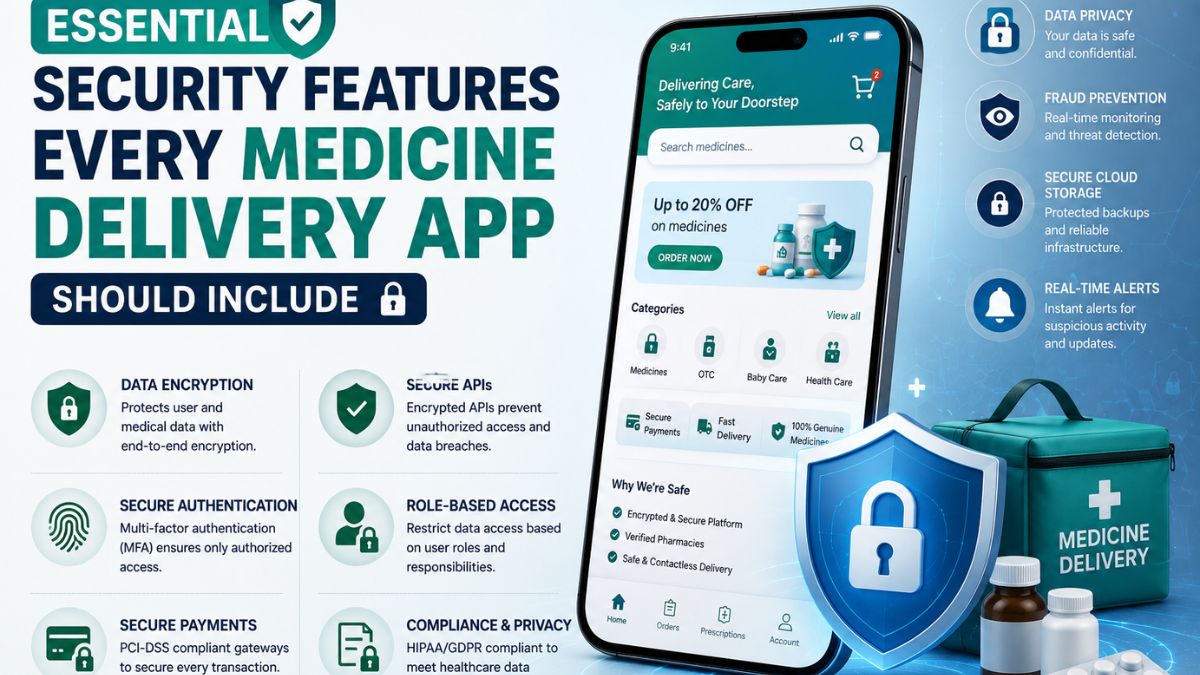
Medicine delivery applications have transformed the way patients access healthcare by making prescriptions and over-the-counter medications available with just a few taps. From uploading prescriptions to tracking deliveries in real time, these apps simplify the purchasing process.
Their main goal is to improve convenience for users with busy schedules, chronic illnesses, or limited mobility. However, the convenience of digital healthcare comes with significant security responsibilities.
Medicine delivery apps manage highly sensitive information, including patient records, prescriptions, payment details, addresses, and personal identification. A single security vulnerability can expose confidential data, interrupt pharmacy operations, and undermine customer trust.
As cyber threats continue to evolve, developers must prioritize security throughout the application’s lifecycle. Integrating advanced protection mechanisms not only safeguards user information but also ensures regulatory compliance and strengthens the platform’s reliability.
Build Security into the Development Process
Security should never be considered a feature that is added after an application is completed. Instead, it must be integrated into every stage of planning, development, testing, and deployment.
Professional medicine delivery app development services focus on secure architecture, encrypted communications, protected databases, and continuous vulnerability assessments from the beginning of the project. This proactive approach reduces the likelihood of security flaws while creating a strong technical foundation that can support future growth.
Embedding security early also lowers maintenance costs by preventing expensive fixes after deployment. Building a secure medicine delivery application requires a comprehensive strategy that protects every interaction, from user authentication to order fulfillment.
Secure Features Begin with Smart Planning
Modern medicine delivery app features should be designed with user protection in mind rather than convenience alone. Every new capability, whether prescription uploads, payment processing, or delivery tracking, should undergo a security evaluation before implementation.
Security-focused planning helps developers identify potential attack vectors, apply appropriate access controls, and establish safe data handling practices without affecting the user experience. As a result, businesses can introduce innovative features while maintaining high standards of privacy and reliability.
-
Multi-Factor Authentication Protects User Accounts
Passwords alone are no longer sufficient to secure user accounts. Multi-factor authentication (MFA) adds a verification layer by requiring users to confirm their identity through another method before gaining access.
Common authentication options include:
- One-time passwords (OTP)
- Biometric verification
- Authentication applications
- Email verification
- Device recognition
Even if login credentials become compromised, unauthorized users cannot easily access patient accounts without completing additional verification. This simple security enhancement dramatically reduces account takeover attempts.
2.End-to-End Encryption Safeguards Sensitive Information
Medicine delivery applications continuously exchange confidential information between users, pharmacies, healthcare providers, and payment gateways. End-to-end encryption ensures that information remains unreadable while traveling across networks.
Encryption should protect:
- Personal information
- Medical prescriptions
- Payment details
- Delivery addresses
- Chat conversations
- Health records
Strong encryption standards such as AES-256 and TLS help prevent attackers from intercepting sensitive information during transmission. Encryption also supports compliance with healthcare privacy regulations across different markets.
3.Role-Based Access Control Prevents Unauthorized Access
Not every employee requires the same level of access. Role-Based Access Control (RBAC) assigns permissions based on specific job responsibilities.
For example:
- Pharmacists verify prescriptions
- Delivery personnel access customer addresses
- Customer support manages account inquiries
- Administrators oversee system settings
- Finance teams review payment records
Limiting permissions reduces the risk of accidental exposure or intentional misuse of confidential information. RBAC also simplifies auditing by clearly defining who can access different system resources.
4.Secure Prescription Upload and Verification
Prescription management is one of the most critical components of medicine delivery platforms. Applications should securely process uploaded documents while verifying authenticity before fulfilling orders.
Recommended security practices include:
- Encrypted file uploads
- Virus scanning
- Secure cloud storage
- Prescription validation
- Access logging
- Temporary download permissions
Automated verification systems can also reduce fraud while accelerating pharmacy approval processes. Patients benefit from faster order processing without sacrificing data protection.
5.API Security Protects Connected Systems
Medicine delivery applications rely on APIs to communicate with payment providers, pharmacy software, inventory systems, notification platforms, and healthcare databases. Poorly protected APIs often become entry points for cyberattacks.
API security should include:
- OAuth authentication
- JWT validation
- Rate limiting
- API gateways
- Input validation
- Request encryption
Every API request should be authenticated and monitored to prevent unauthorized access or malicious activity. Proper API management also improves application stability during periods of heavy traffic.
6.Secure Payment Processing Builds Customer Confidence
Digital payments remain one of the most sensitive areas of any healthcare application.
Payment systems should comply with recognized security standards while protecting customer financial information through:
- Tokenization
- PCI DSS compliance
- Secure payment gateways
- Fraud detection
- Transaction monitoring
- Payment encryption
Applications should never store complete card information directly within their databases. Instead, payment providers securely manage financial credentials while applications store encrypted transaction references. This approach significantly reduces financial risks.
7.Real-Time Monitoring Detects Threats Early
Cybersecurity does not end after deployment. Continuous monitoring allows businesses to detect suspicious behavior before security incidents escalate.
Monitoring systems track:
- Failed login attempts
- Unusual account activity
- Suspicious payment behavior
- API misuse
- Network anomalies
- Permission changes
- Device activity
Automated alerts enable technical teams to investigate and resolve issues quickly, minimizing potential damage. Proactive monitoring also strengthens long-term application reliability.
8.Protect Cloud Infrastructure
Most medicine delivery applications rely on cloud platforms for scalability and performance. Cloud security requires more than simply hosting data online.
Important cloud security measures include:
- Identity management
- Private networking
- Encrypted databases
- Backup automation
- Disaster recovery
- Secure cloud storage
- Continuous vulnerability scanning
Cloud providers offer numerous built-in security tools, but developers must configure them correctly to maximize protection. Well-managed cloud infrastructure reduces downtime while ensuring business continuity.
Regular Security Testing Strengthens Applications
Security testing helps identify vulnerabilities before attackers discover them.
Comprehensive testing includes:
- Penetration testing
- Vulnerability scanning
- Code reviews
- API security testing
- Authentication testing
- Performance testing
- Dependency analysis
Routine assessments allow development teams to fix weaknesses as new threats emerge. Security should remain an ongoing process rather than a one-time project.
Compliance Supports Long-Term Success
Medicine delivery applications operate within highly regulated industries. Maintaining compliance demonstrates a commitment to protecting customer information while reducing legal risks.
Depending on the target market, businesses may need to comply with regulations involving:
- Healthcare privacy
- Payment security
- Data protection
- Digital consent
- Medical record management
Maintaining accurate audit logs, secure authentication, encrypted storage, and documented security procedures simplifies compliance efforts while improving operational transparency.
Educate Users About Security Best Practices
Even the most secure application benefits from informed users.
Applications can encourage safer behavior by reminding customers to:
- Create strong passwords
- Enable multi-factor authentication
- Avoid public Wi-Fi during payments
- Update applications regularly
- Recognize phishing attempts
- Review account activity periodically
User education complements technical security controls and helps reduce preventable security incidents. Simple guidance can significantly improve overall platform safety.
Conclusion
Security is one of the most important foundations of a successful medicine delivery application. As these platforms continue handling sensitive healthcare information, developers must implement comprehensive safeguards. It assists in protecting user identities, medical records, prescriptions, payment transactions, and cloud infrastructure.
Features such as multi-factor authentication, secure APIs, role-based access controls, continuous monitoring, and regular security testing create multiple layers of defense against evolving cyber threats.
By making security an integral part of the development process rather than an afterthought. Businesses can build trustworthy medicine delivery applications that inspire customer confidence, support regulatory compliance, and maintain uninterrupted healthcare services.
In today’s digital healthcare landscape, investing in strong security is not simply a technical requirement. It is a critical factor in delivering safe, reliable, and future-ready patient experiences.
You May Also Read : Understanding Waveform Analysis in Electronic Testing
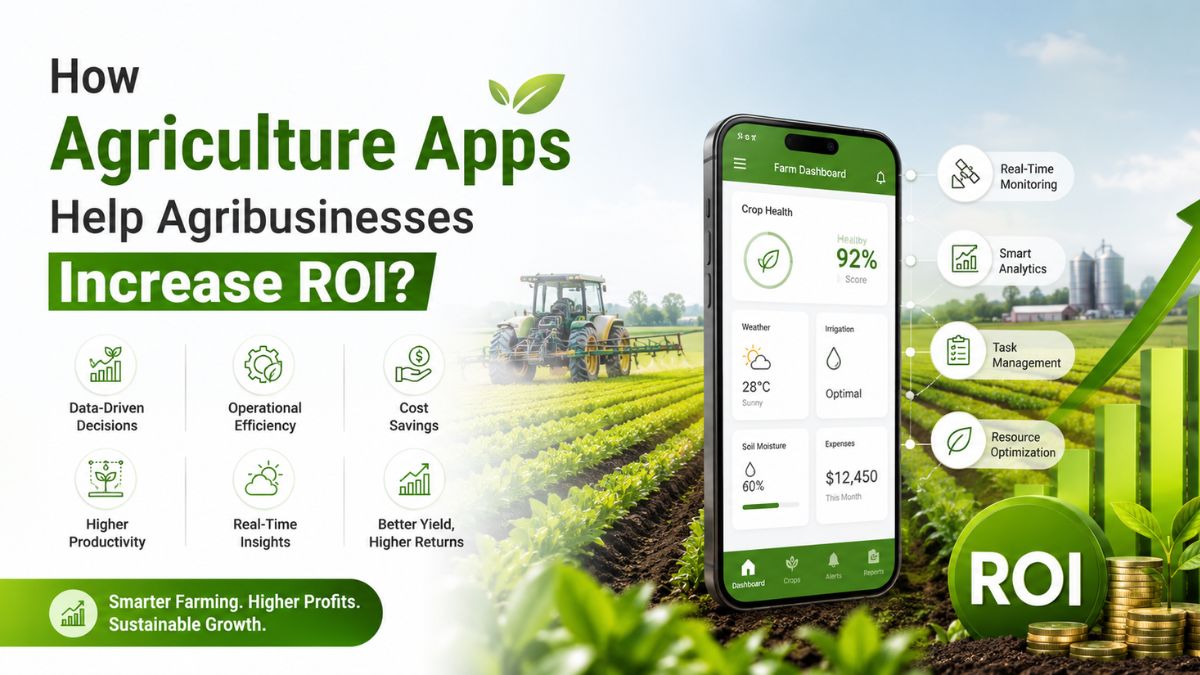
The agriculture industry is evolving rapidly. Farmers and agribusinesses now use mobile apps to manage daily operations. These apps help businesses improve productivity, reduce costs, and make better decisions.
Many agribusinesses still depend on manual processes and paper records. This often leads to delays, mistakes, and wasted resources. Agriculture apps solve these challenges by bringing important farm data into one place.
From crop management to livestock tracking, these apps support every stage of farming operations. They also help businesses increase efficiency and improve their return on investment.
In this guide, explore the key benefits of agriculture apps in maximising ROI and the different types of apps that help agribusinesses achieve long-term business growth.
Key Benefits of Agriculture Apps for Agribusinesses
Agriculture apps do much more than simplify farming activities. They help businesses improve daily operations, reduce unnecessary expenses, and make informed decisions. These advantages lead to better productivity, stronger profits, and higher ROI over time.
1. Maximize Productivity
Agriculture apps automate many routine tasks like scheduling, record-keeping, and field monitoring. This reduces manual work and allows farmers to focus on higher-value activities. It includes monitoring crops, equipment, and farm operations through a single platform.
Better productivity leads to healthier crops, smoother workflows, and improved business performance. Many businesses partner with an agriculture app development company to build a custom application to improve productivity and maximise ROI.
2. Increase Efficiency
Efficiency helps agribusinesses save time while improving overall performance. The agriculture apps organize multiple farming activities into an easy-to-use system. Business owners or farmers can manage workers, inventory, equipment, and field activities easily.
Higher efficiency helps businesses complete more work without increasing operational costs. All of this makes daily operations more organized and improves communication to create smoother business operations.
3. Educate Farmers
Agriculture apps provide useful information for better farming practices and business planning. Many apps offer farming guides, weather updates, market prices, pest management tips, and crop care recommendations.
This information helps farmers improve knowledge and productivity. Better knowledge reduces mistakes, improves planning, and supports long-term business growth. Therefore, using such information helps farmers make informed decisions.
4. Reduce Costs
Controlling expenses is essential for maximising ROI. Agriculture apps help businesses manage resources more efficiently and reduce unnecessary costs. Provides recommendations for fertilizer application, irrigation, and crop management.
Many businesses, while building an application, compare the cost to build an agriculture app with the revenue it can generate in the long term. Lower operating costs improve profit margins and increase long-term return on investment.
5. Improves Market Transparency
Agriculture apps help farmers with complete market transparency. Such applications allow farmers or agribusiness owners to interact directly with their buyers, investors, or sellers. It helps to reduce the dependency burden on other commodity suppliers.
Further, through market transparency, farmers will also get real-time updates on commodity prices, understand the market demand, and make suitable decisions. Thus, when farmers are updated about the latest prices, they make better revenue for their business in the long term.
Types of Agriculture Apps That Help Increase ROI
Different agriculture apps solve different business challenges. Each app focuses on improving specific farming operations while helping businesses reduce costs and increase profits. Selecting the right solution depends on your operational needs and long-term business goals.
►Farm Management Apps
Farm management apps bring multiple farming activities into one platform. They help businesses manage crops, workers, inventory, finances, and equipment more efficiently. Business owners can monitor daily operations, track expenses, and review farm performance from a single dashboard.
Better organization reduces manual work and improves business decision-making. As daily operations become more efficient, businesses increase productivity and achieve stronger financial returns.
►Weather Forecasting Apps
Weather has a direct impact on farming activities and crop production. Unexpected weather changes can delay operations and reduce crop quality. Weather forecasting apps provide timely weather updates and future forecasts. Businesses can plan irrigation, harvesting, spraying, and planting with greater confidence.
Better planning reduces weather-related losses and protects valuable resources. Accurate forecasts help businesses avoid unnecessary expenses while improving overall productivity.
►GPS Tracking and Field Mapping Apps
Managing large farms becomes much easier with GPS tracking technology. These apps help businesses monitor fields, equipment, and farming activities more effectively. Managers can optimize travel routes, reduce fuel consumption, and allocate resources more efficiently.
Field mapping also identifies areas that require additional attention during different crop growth stages. Better resource management improves productivity while lowering operational costs.
►Livestock Management Apps
Livestock businesses require continuous monitoring to maintain healthy animals and stable production. Livestock management apps simplify these daily responsibilities. These apps track feeding schedules, breeding records, vaccinations, and animal health information in one place.
Automatic reminders help farmers complete important tasks on time. Livestock improves production while reducing veterinary expenses and operational risks.
►Agricultural Lending Apps
Financial support plays an important role in business expansion. Agricultural lending apps help farmers and agribusinesses access funding more quickly and easily. These apps simplify loan applications and reduce paperwork. Businesses can secure funds for machinery, irrigation systems, equipment upgrades, or farm expansion.
Faster access to financing allows businesses to invest in better technology and improve productivity. Strong financial support creates more opportunities for long-term business growth and higher returns.
Conclusion
Agriculture apps have become valuable business tools for modern agribusinesses. They help businesses maximize productivity, improve efficiency, reduce operating costs, and make smarter business decisions.
These apps help educate farmers with valuable insights while simplifying everyday farm management. Whether managing crops, livestock, equipment, finances, or weather planning, agriculture apps improve every stage of agricultural operations.
One of the important benefits of agriculture business in maximising ROI is that it supports transparent market insights. It helps to eliminate unnecessary middlemen and allows farmers to directly connect with buyers.
Different types of agriculture apps address different business needs. Farm management, weather forecasting, GPS tracking, livestock management, and agricultural lending apps all contribute to better operational performance and stronger financial results.
For startups and established agribusinesses, investing in the right agriculture app is a practical business decision. It helps improve efficiency, strengthen profitability, and build a future-ready agricultural business in an increasingly competitive market.
You May Also Read : What Is Incestflox? Understanding the Online Search Term and Internet Safety
Shopping for groceries has changed dramatically over the past few years. Mobile technology now allows shoppers to save time, access exclusive discounts, and manage purchases directly from their smartphones. One tool that has gained popularity among regular grocery shoppers is the Fry’s mobile app.
The Fry’s mobile app helps customers browse products, clip digital coupons, track rewards, create shopping lists, and place online grocery orders. Whether you’re a frequent Fry’s customer or you’re considering downloading the app for the first time, understanding its features can help you maximize your savings and improve your shopping experience.
This guide covers everything you need to know, including features, benefits, setup instructions, common mistakes, and best practices.
What Is the Fry’s Mobile App?
The Fry’s mobile app is a grocery shopping application designed to help customers access Fry’s Food Stores services directly from their mobile devices.
The app combines shopping, rewards management, digital coupons, and online ordering into a single platform.
Key Functions
Users can:
- Browse weekly ads
- Access digital coupons
- Create shopping lists
- Track rewards points
- Order groceries online
- Schedule pickup or delivery
- View purchase history
- Refill prescriptions where available
- Manage account information
The app is designed to streamline grocery shopping while helping customers save money through personalized deals and promotions.
Main Features of the Fry’s Mobile App
Several features make the app useful for both occasional and frequent shoppers.
Digital Coupons
One of the most valuable tools is the digital coupon system.
Instead of carrying paper coupons, users can:
- Browse available offers
- Save coupons with one tap
- Apply discounts automatically during checkout
- Access personalized promotions
Weekly Ads
The app provides quick access to current promotions and sales.
Customers can:
- View discounted products
- Plan purchases ahead of time
- Compare pricing
- Build shopping lists around deals
Shopping Lists
Creating a digital shopping list can help reduce unnecessary purchases.
Benefits include:
- Better organization
- Easier budget management
- Faster shopping trips
- Reduced chances of forgetting items
Rewards Management
The app helps customers monitor loyalty rewards and available savings.
Users can:
- View reward balances
- Redeem available offers
- Track earning progress
- Access special member pricing
Benefits of Using the Fry’s Mobile App
Many shoppers download the app primarily for convenience, but the advantages extend much further.
Savings Opportunities
Digital coupons and personalized promotions often provide additional discounts that may not be available in-store.
Improved Shopping Efficiency
Instead of browsing aisles without a plan, customers can prepare their shopping lists in advance.
Better Budget Control
Price comparisons, rewards tracking, and coupon management make it easier to stay within a grocery budget.
Convenient Ordering
Online ordering allows customers to shop from home and schedule pickup or delivery.
Personalized Experience
The app can recommend products and offers based on shopping history and preferences.
Feature Comparison Table
| Feature | Benefit | Best For |
|---|---|---|
| Digital Coupons | Automatic savings | Budget-conscious shoppers |
| Weekly Ads | Deal discovery | Smart planners |
| Shopping Lists | Better organization | Families and busy shoppers |
| Rewards Tracking | Extra discounts | Frequent customers |
| Online Ordering | Time savings | Busy professionals |
| Pickup Scheduling | Convenience | Parents and commuters |
How to Get Started With the Fry’s Mobile App
Setting up the app is straightforward.
Step 1: Download the App
Search for the Fry’s mobile app in your device’s app store and install it.
Step 2: Create an Account
New users can register using:
- Email address
- Phone number
- Password
Existing loyalty members can connect their current accounts.
Step 3: Add Your Preferred Store
Selecting a home store ensures accurate pricing, inventory information, and local promotions.
Step 4: Enable Rewards
Link your rewards account to access personalized offers and savings.
Step 5: Start Saving Coupons
Browse available promotions and add relevant coupons before your next shopping trip.
How the App Helps You Save More
Many shoppers underestimate how much money can be saved through digital tools.
Coupon Stacking Opportunities
Customers can often combine:
- Sale prices
- Loyalty rewards
- Digital coupons
- Promotional offers
Personalized Discounts
The app may present offers based on previous purchases, making savings more relevant.
Price Awareness
Reviewing weekly ads before shopping can prevent impulse purchases and help identify better deals.
Savings Strategy Breakdown
| Savings Method | Effort Required | Potential Benefit |
|---|---|---|
| Digital Coupons | Low | Immediate discounts |
| Weekly Ads | Low | Lower product prices |
| Rewards Program | Medium | Long-term savings |
| Shopping Lists | Low | Reduced impulse spending |
| Online Ordering | Medium | Better spending control |
Online Grocery Ordering Through the App
Online grocery shopping has become a preferred option for many households.
Pickup Orders
Customers can:
- Shop from home
- Choose a pickup time
- Avoid store crowds
- Save time
Delivery Services
Depending on location, grocery delivery may also be available.
Benefits include:
- Convenience
- Flexible scheduling
- Reduced travel time
- Easy reordering of favorite products
Order Tracking
The app helps users monitor order status and receive updates regarding preparation and fulfillment.
Best Practices for Using the Fry’s Mobile App
Getting the most value from the app requires more than simply downloading it.
Check Coupons Before Every Shopping Trip
New offers are frequently added, and available discounts can change regularly.
Review Weekly Ads
Planning purchases around sales can significantly reduce grocery expenses.
Build Lists in Advance
Creating shopping lists before entering the store helps maintain focus and budgeting goals.
Track Rewards Frequently
Unused rewards may have expiration dates, so monitoring balances is important.
Update the App Regularly
Keeping the latest version ensures access to new features and security improvements.
Best Practices Summary Table
| Best Practice | Why It Matters |
|---|---|
| Clip Coupons Weekly | Maximizes savings opportunities |
| Monitor Rewards | Prevents missed benefits |
| Plan Around Sales | Reduces grocery costs |
| Use Shopping Lists | Improves organization |
| Keep App Updated | Enhances performance and security |
Pros and Cons of the Fry’s Mobile App
Pros
- Easy-to-use interface
- Convenient digital coupons
- Access to weekly promotions
- Grocery pickup options
- Rewards tracking
- Personalized deals
- Shopping list functionality
Cons
- Some features require account registration
- Certain offers may vary by location
- Internet connection is often required
- Delivery availability may differ depending on region
Common Mistakes Users Make
Many shoppers miss opportunities because they overlook important features.
Forgetting to Clip Coupons
Available discounts may not apply automatically unless coupons are added beforehand.
Ignoring Weekly Ads
Customers often pay more when they skip reviewing current promotions.
Not Linking Rewards Accounts
Without account linking, some benefits and personalized offers may be unavailable.
Shopping Without a List
Unplanned purchases can increase grocery spending significantly.
Missing Reward Deadlines
Unused rewards may expire before redemption.
Who Should Use the Fry’s Mobile App?
The app is suitable for a wide range of shoppers.
Families
Large households can benefit from better organization and ongoing savings.
Busy Professionals
Online ordering and pickup options help reduce shopping time.
Budget-Conscious Consumers
Coupon access and rewards programs support cost-saving goals.
Seniors
The app simplifies planning and provides access to promotions without handling paper coupons.
Frequently Asked Questions
Is the Fry’s mobile app free?
Yes. The app can typically be downloaded and used without any subscription fee.
Can I use digital coupons in-store?
Yes. Eligible digital coupons are usually applied when linked accounts are used during checkout.
Does the app support grocery pickup?
Yes. Many locations offer pickup services through the app.
Can I track rewards points?
Yes. Users can view rewards balances and available offers directly within the app.
Do I need an account to use all features?
Most advanced features, including rewards and personalized savings, require an account.
Conclusion
The Fry’s mobile app offers a practical way to simplify grocery shopping while increasing opportunities to save money. With features such as digital coupons, rewards tracking, online ordering, shopping lists, and weekly ads, the app serves as a valuable tool for modern shoppers.
Whether your goal is reducing grocery expenses, improving shopping efficiency, or managing rewards more effectively, the app provides multiple tools that support smarter purchasing decisions. By regularly checking promotions, maintaining shopping lists, and tracking rewards, users can get the greatest value from their grocery shopping experience.
/ You May Also Read /
Chipotle App Not Working? Complete Troubleshooting Guide to Fix Common Issues
Enhancing Mobile App Onboarding Through Subtle Guidance and Personalization
-

 Business4 months ago
Image Search Techniques: Smarter Ways to Find Accurate Visual Results Online
-
Health3 months ago
Why Are So Many Autistic Girls and Women Still Missing Out on Early Identification?
-

 Lifestyle6 months ago
Sustainable Ways to Buy and Sell Antiques
-

 Sports3 months ago
Ultimate Pragmatic Juara100.org Medal Achievement Guide for Maximum Rewards
-

 Health4 months ago
Pravi Celer: Benefits, Uses, and How to Add It to Your Daily Diet
-

 Technology4 months ago
TabooTube: What It Is, How It Works, and Whether It’s Worth Your Time
-

 Business5 months ago
Understanding the Idaho Policy Institute Formal Eviction Rate 2020 Shoshone County: Housing Stability Insights
-

 Technology6 months ago
Top Features of ProgramGeeks Social You Didn’t Know About